> For the complete documentation index, see [llms.txt](https://docs.tallygo.ai/llms.txt). Markdown versions of documentation pages are available by appending `.md` to page URLs; this page is available as [Markdown](https://docs.tallygo.ai/connect-your-systems/how-tally-connects-to-your-emails/connect-a-gmail-inbox.md).
# Connect a Gmail inbox
Connect the Gmail or Google Workspace inbox Tally should work from, then confirm it's syncing.
{% hint style="info" %}
**Before you start**
* **A Tally login.** If you don't have one, ask a Tally admin at your company to invite you.
* **The Google sign-in for the inbox itself.** Tally reads the account you sign in with, so for a shared or delegated inbox, sign in as that account rather than your own.
* **Google Workspace only:** if your company restricts third-party apps, ask your Workspace admin to allow Tally first. Your Tally team can share the details they need.
{% endhint %}
## Connect the inbox
{% stepper %}
{% step %}
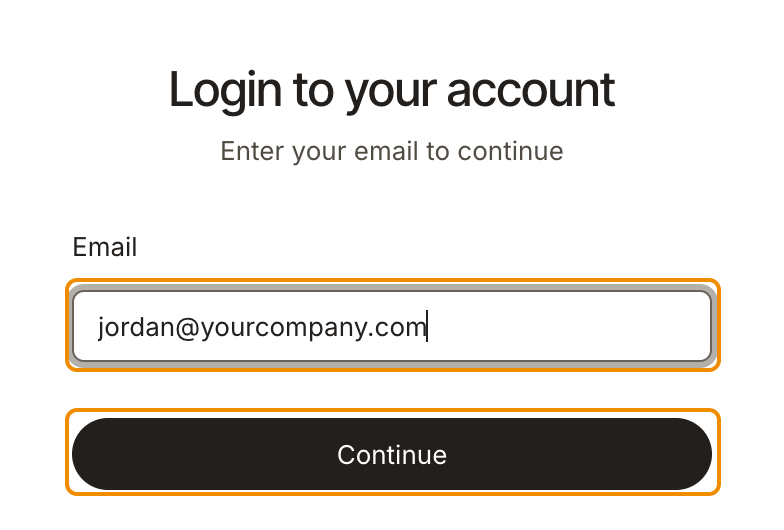
### Sign in to Tally
Go to [app.tallygo.ai](https://app.tallygo.ai/), enter your work email, click **Continue** and enter your password. If your company uses single sign-on, you'll go to your company's sign-in page instead.
{% endstep %}
{% step %}
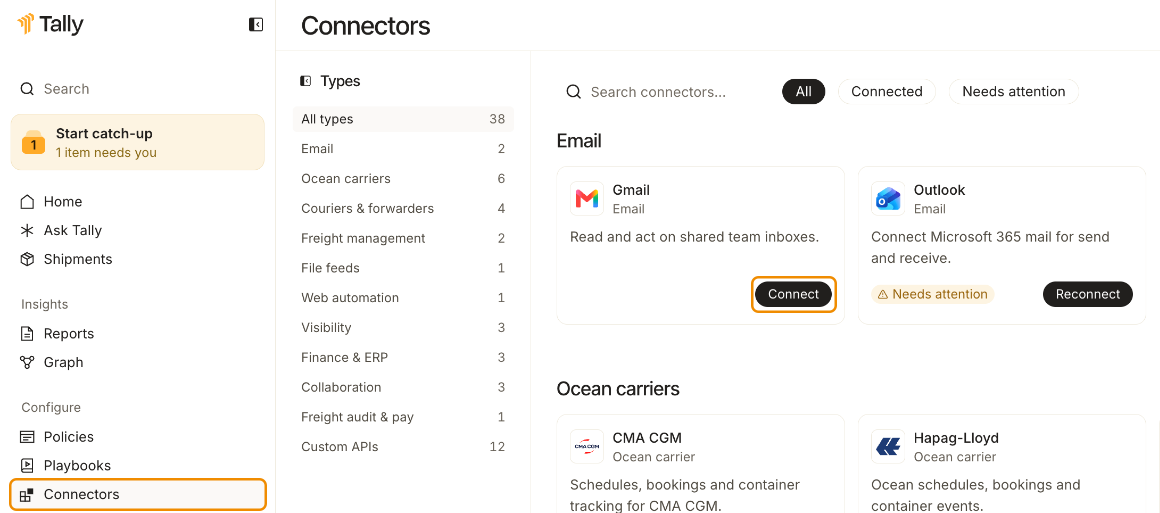
### Open Connectors
In the left sidebar, click **Connectors**, then click **Connect** on the Gmail card.
{% endstep %}
{% step %}
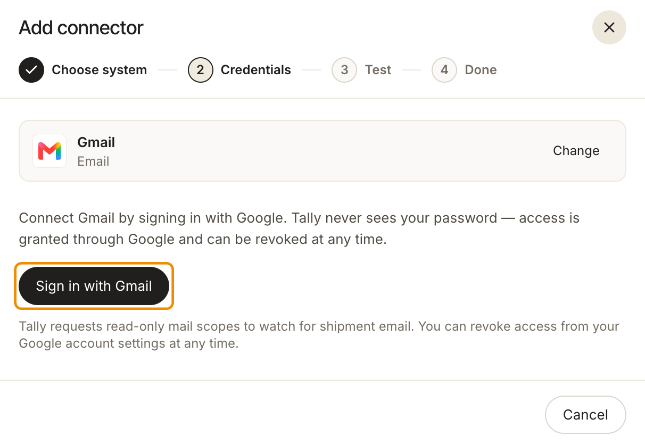
### Click Sign in with Gmail
Tally sends you to Google. Tally never sees your Google password.
{% endstep %}
{% step %}
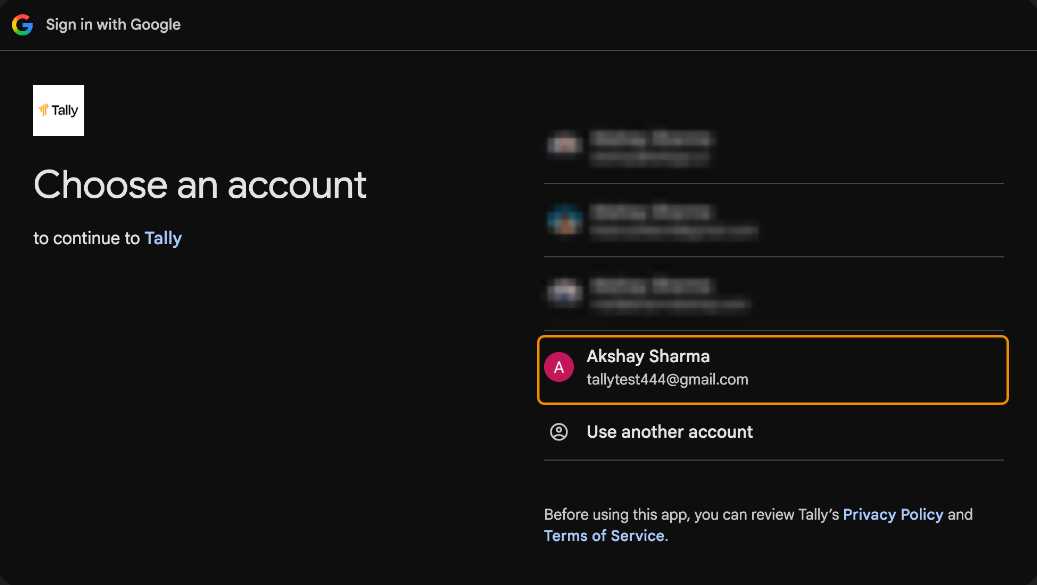
### Choose the inbox's Google account
Select the inbox's account. If it isn't listed, click **Use another account** and sign in with that inbox's email and password.
{% endstep %}
{% step %}
### Continue past Google's notice
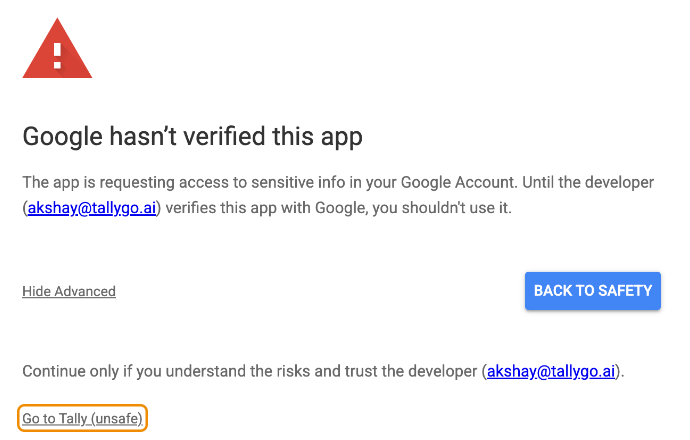
If Google shows **Google hasn't verified this app**, click **Advanced**, then **Go to Tally (unsafe)**.
{% endstep %}
{% step %}
### Allow access
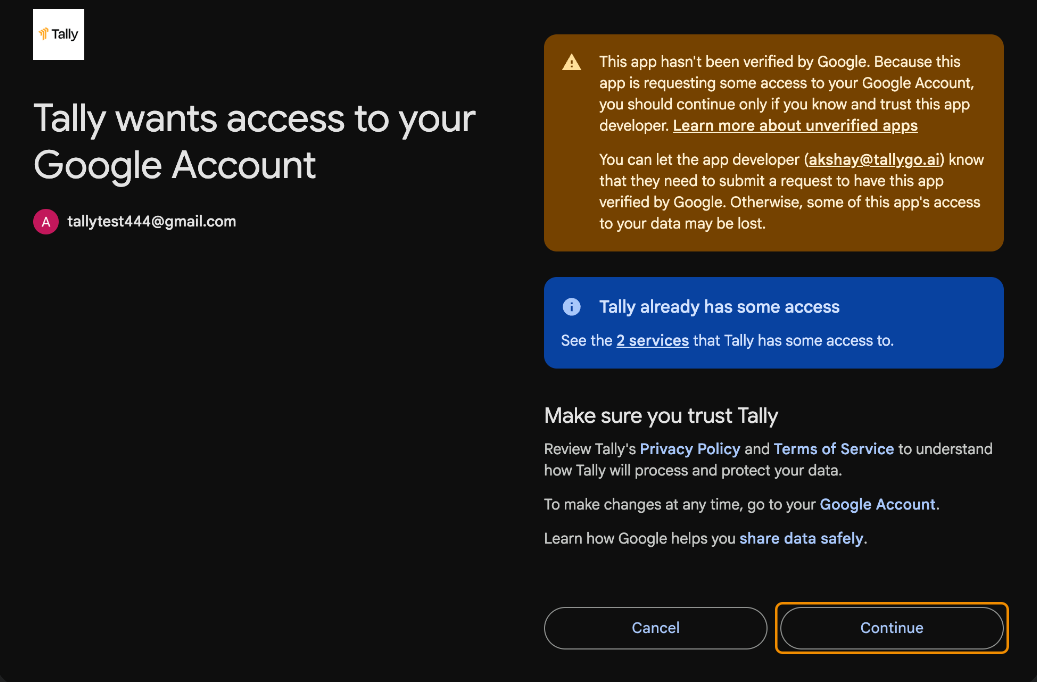
Check the account shown is the inbox you want and click **Continue**. If Google lists permissions with checkboxes, select all of them. Google then returns you to Tally.
{% endstep %}
{% endstepper %}
## Confirm it's connected
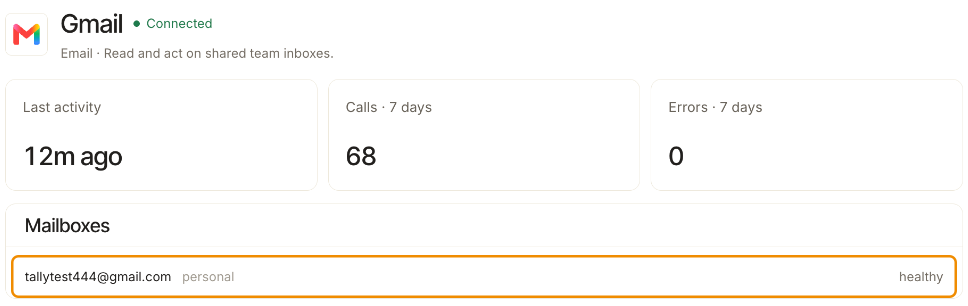
On the Connectors page, open the Gmail card. It shows **Connected**, and your inbox is listed under **Mailboxes**. The status changes from `never_synced` to `healthy` after the first sync, usually within 10 minutes.
## Good to know
* Tally reads the inbox's **Inbox** and **Sent** folders and checks for new mail about every 10 minutes.
* If the Google account's password changes, the Gmail card shows **Needs attention**. Click **Reconnect** and sign in again as the same inbox.
* To stop Tally reading the inbox, remove Tally from the Google account's third-party connections, or ask your Tally team.
## Troubleshooting
| Problem | What to do |
| ------------------------------------------------- | -------------------------------------------------------------------------------------------------------------- |
| Google says access is blocked | Your Workspace admin restricts third-party apps. Ask them to allow Tally, then start again from step 2. |
| The wrong address is under Mailboxes | A different Google account was chosen in step 4. Ask your Tally team to remove it, then connect the right one. |
| Still `never_synced` after 20 minutes, or `error` | Contact your Tally team. |
---
# Agent Instructions
This documentation is published with GitBook. GitBook is the documentation platform designed so that both humans and AI agents can read, navigate, and reason over technical content effectively. Learn more at gitbook.com.
## Querying This Documentation
If you need additional information that is not directly available in this page, you can query the documentation by asking a question.
Perform an HTTP GET request on the following URL with the `ask` and `goal` query parameters:
```
GET https://docs.tallygo.ai/connect-your-systems/how-tally-connects-to-your-emails/connect-a-gmail-inbox.md?ask=&goal=
```
`ask` is the immediate question: it should be specific, self-contained, and written in natural language.
`goal` is what the user is ultimately trying to achieve, the reason they need the answer. Sharing it helps GitBook give you a better, more relevant answer. A goal is most helpful when it describes the outcome the user wants rather than restating the question. For example, with `ask=how do I create an API token`, a goal like `automate deployments from our CI pipeline` lets GitBook tailor the answer to that use case.
The response will contain a direct answer to the question and relevant excerpts and sources from the documentation.
Use this mechanism when the answer is not explicitly present in the current page, you need clarification or additional context, or you want to retrieve related documentation sections.