> For the complete documentation index, see [llms.txt](https://docs.tallygo.ai/llms.txt). Markdown versions of documentation pages are available by appending `.md` to page URLs; this page is available as [Markdown](https://docs.tallygo.ai/get-started/invite-your-team.md).
# Invite your team
Add teammates to your company's Tally workspace.
{% hint style="info" %}
You need the **Admin** role in Tally to invite people. If you don't see **Users** in Settings, ask a Tally admin at your company.
{% endhint %}
## Send an invitation
{% stepper %}
{% step %}
### Open Settings
Click your name at the bottom of the left sidebar, then click **Settings**.
{% endstep %}
{% step %}
### Open Users and click Invite User
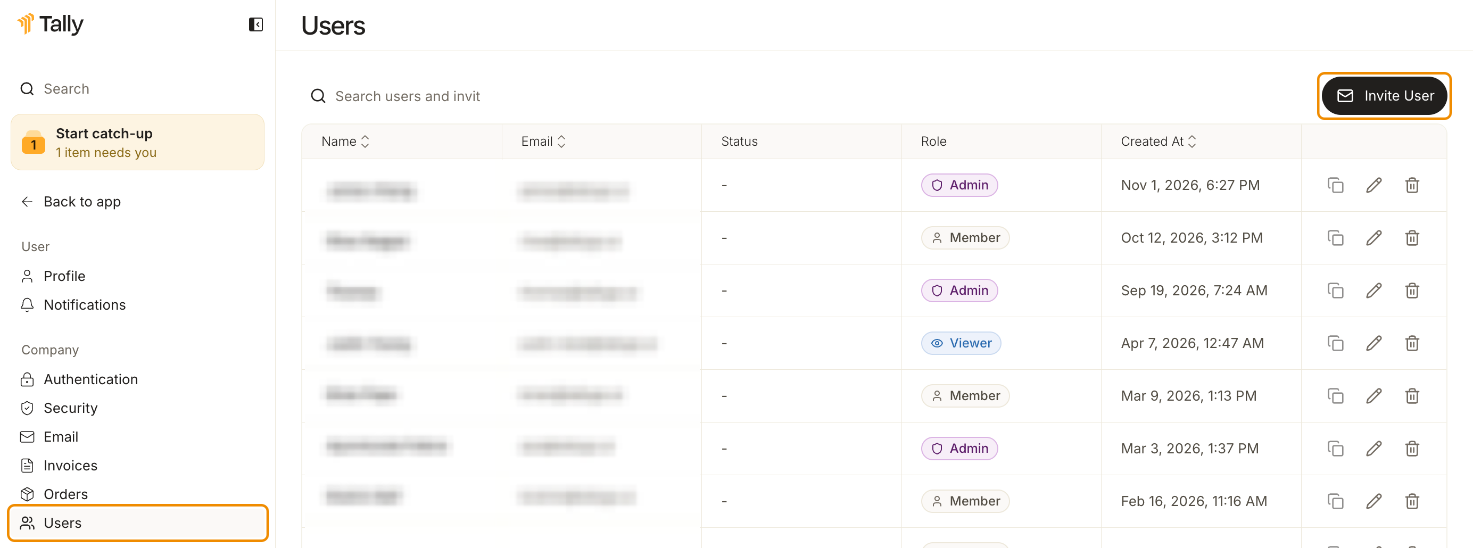
Under **Company**, click **Users**, then click **Invite User**.
{% endstep %}
{% step %}
### Enter their work email and send
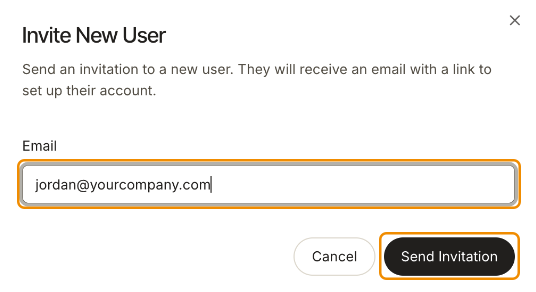
Type your teammate's work email and click **Send Invitation**. Repeat for each person.
{% endstep %}
{% endstepper %}
## Confirm it was sent
The invitation appears at the top of the Users list with a **Pending** status until your teammate accepts. Invitations expire after 7 days. On their row, the copy icon copies their invite link and the bin icon cancels the invitation.
## What your teammate does
They open the link in the invitation email, click **Get Started**, and set their name and password, or sign in with single sign-on if your company uses it. Once they've joined, they appear in the Users list. To change their role, click the pencil icon on their row.
## Troubleshooting
| Problem | What to do |
| --------------------------------------------- | -------------------------------------------------------------------------------------------------------------------------------------- |
| "A user with this email already exists" | They already have access. They can sign in at [app.tallygo.ai](https://app.tallygo.ai/) or reset their password from the sign-in page. |
| The email didn't arrive | Ask them to check spam, or copy the invite link from their row and send it to them directly. |
| The invitation disappeared before they joined | It expired after 7 days. Send a new one. |
---
# Agent Instructions
This documentation is published with GitBook. GitBook is the documentation platform designed so that both humans and AI agents can read, navigate, and reason over technical content effectively. Learn more at gitbook.com.
## Querying This Documentation
If you need additional information that is not directly available in this page, you can query the documentation by asking a question.
Perform an HTTP GET request on the following URL with the `ask` and `goal` query parameters:
```
GET https://docs.tallygo.ai/get-started/invite-your-team.md?ask=&goal=
```
`ask` is the immediate question: it should be specific, self-contained, and written in natural language.
`goal` is what the user is ultimately trying to achieve, the reason they need the answer. Sharing it helps GitBook give you a better, more relevant answer. A goal is most helpful when it describes the outcome the user wants rather than restating the question. For example, with `ask=how do I create an API token`, a goal like `automate deployments from our CI pipeline` lets GitBook tailor the answer to that use case.
The response will contain a direct answer to the question and relevant excerpts and sources from the documentation.
Use this mechanism when the answer is not explicitly present in the current page, you need clarification or additional context, or you want to retrieve related documentation sections.